Floating window
A floating teleprompter that sits on top of the app you record with.
Start the script, shrink it into a floating window, then open your camera app. The window stays on top and keeps following your voice while you film.
 6 free takes. iPad, iPadOS 16 or later. 6 free takes. iPhone, iOS 16 or later.
 What the window is
A teleprompter that only works inside its own app is a teleprompter you can’t film with. Wispim moves the script into a small window that can stay on top of other apps. Voice following while recording has been tested in Camera, Instagram and TikTok; another app may take the microphone, in which case the take waits at the word you reached. The window snaps to a corner the way Picture in Picture does, so you can park it next to the lens, out of the middle of your shot.
Everything the prompter does underneath carries on inside the window. If you started in Voice mode, the window is still following the words you actually say. It pauses when you pause and catches up when you speed up. If you set a start delay of 5, 10 or 20 seconds, it counts down inside the floating window too, so it is still readable with the phone already on a tripod and your hands off it.
Wide, Tall or Strip, and which way is up
The window comes in three shapes. Wide is 3:2, the default, and gives you long lines and few of them, which suits a landscape phone or a window that has to live in a band of screen the camera app isn’t using. Tall is 2:3 and stacks more lines in a narrower column. Strip is a thin band sized for two lines, meant to sit just under the front camera so your eyes stay near the lens. Which of the three earns its place in a vertical 9:16 frame is worked through on the Reels page.
Rotate text, on the Start screen and in the take’s bar, turns the script a quarter turn clockwise with each tap, and a long press puts it upright again. So whichever way your rig clamps the phone, the text reads the right way up from where you are standing. One angle covers the full-screen take and the floating window alike, and the window keeps its shape.
Side margins inside the window are set independently of the full-screen prompter, and they matter more than they sound: margins that keep a full page comfortable waste half the width of a window a fraction of that size. The text size is not a separate setting. It follows the script’s own, scaled to the shape you picked, and Strip shrinks it far enough to fit its two lines.
It does not accept touch, which is why the commands exist
You cannot tap, drag, pinch or scroll inside the floating window. This is an iOS constraint on windows of this kind, not a Wispim setting you can switch on, and every control that would normally be a tap has to be something else instead.
So there are two ways to drive it without touching anything. Spoken commands pause, continue, go back a sentence, start over and jump to the end, in ten languages, with the phrases editable per language, so you can change one that keeps firing inside your script. The volume buttons move one sentence back or forward; they are marked Experimental in the app, and they do not work inside camera apps, because the camera takes those buttons for the shutter. That second half is the one that decides your workflow: if the plan is “window over Camera”, the volume buttons are not the control to build the take around; your voice is.
When another app takes the microphone
Wispim listens through the microphone, and so does the app you record in.
Voice following keeps up while you record in Camera, Instagram and TikTok. Those three are tested. The TikTok and Reels pages go into what a take looks like in each.
Some apps do take the microphone away. When one does, the take waits at the word you reached, and a note at the top of the screen says “Mic busy”; the floating window shows the same status. Wispim keeps asking for the microphone back, and when sound comes in again the status says “Listening again” and reading carries on from that same word. It is always on and there is no setting for it. It is also why the video-call page says call apps are untested.
A teleprompter that works with your camera app
People look for a teleprompter with a camera, and usually mean one thing: the script and the recording on screen at the same time, without a second device. That is what the floating window does, and it stays out of the way of the camera app. Wispim does not record video. You film in Camera, Instagram or TikTok, the app you already know, with the settings and the filters you already use, and the script floats on top of it.
The apps that put a camera inside the teleprompter own the whole take: their encoder, their formats, their export. That is a real choice and sometimes the right one. The trade is that you leave the app you publish from. Here the trade goes the other way: nothing about your recording changes, and the one thing added is a window that follows your voice. Voice following keeps up while you record in Camera, Instagram and TikTok, the three that are tested.
About the picture at the top of this page
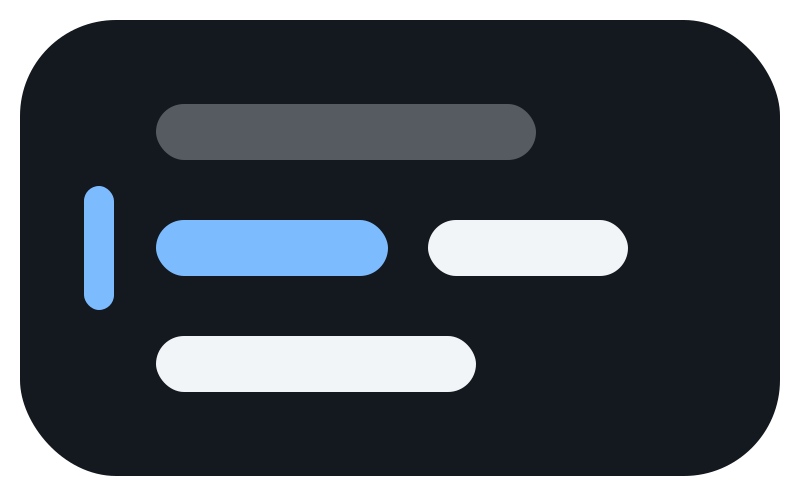
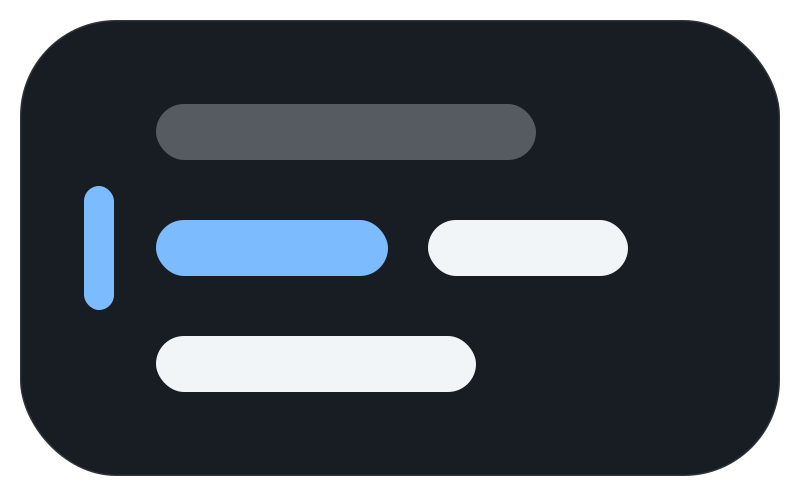
It is built in HTML, not captured from a phone. The floating window doesn’t engage in the iOS Simulator, so a real screenshot has to be shot on hardware and there isn’t one yet. The illustration is drawn to the Wide window’s 3:2 shape, in a corner the window can snap to. It is not a screen grab, and this page won’t pretend otherwise.
The floating window is in the free tier along with the rest of the prompter. Free gives you 6 prompter takes with unlimited scripts, and Pro removes that limit and adds import from TXT, Markdown, PDF, DOCX and RTF. iPhone, iOS 16 or later.
A screen recording from an iPhone. The Wispim floating window sits at the top of the screen, on top of the Camera app, which is recording the person speaking. The line they are reading is blue, and it moves down the script as they talk.
Questions
Can I tap the floating window to pause or scroll it?
No. The floating window does not accept touch. That is an iOS constraint on this kind of window, not a setting. It is the reason the spoken commands and the volume buttons exist: you pause, continue, go back a sentence, start over or jump to the end by saying so, in ten languages, with the phrases editable per language. The volume buttons move one sentence back or forward, they are marked Experimental in the app, and they do not work inside camera apps, which take the buttons for the shutter.
Does voice following work while I record video?
Yes, in Camera, Instagram and TikTok, the three apps it has been tested in. The window stays on top of the app you record with, and voice following keeps up while you record.
What happens if the camera app takes the microphone?
The text holds on the word you reached, and a note at the top of the screen says “Mic busy”. The floating window shows the same status. Wispim keeps asking for the microphone back, and when sound comes in again the status says “Listening again” and reading carries on from that word. Voice follows your words again, Sound waits for your voice. It is always on and there is no setting. To read at a fixed speed instead, end the take and start it again in Constant.
Can I drag the floating window anywhere on the screen?
It snaps to a corner, the way Picture in Picture does. You choose the shape: Wide 3:2, Tall 2:3 or Strip, a thin band sized for two lines. You also set the side margins, and “Rotate text” turns the words a quarter turn at a time. The text size follows the script’s own, scaled to the window.